Get started
By the end of this page you have a runner registered to one of your repositories, the dashboard running on the same Mac, and a real workflow job executing on your own hardware while you watch it happen. Budget about five minutes once the prerequisites are installed; most of that is the 121 MB runner download, which happens once and is then reused by every runner you add.
This is one machine. There is no cloud control plane, no Kubernetes, and nothing to sign up for — the runners, the dashboard and its database all live in the directory you are about to clone. A second Mac can join later with one command; What to do next links to it.
Before you start
| Requirement | Version / notes |
|---|---|
| macOS | 14 Sonoma or later, Apple Silicon (arm64) |
| Homebrew | Must be at /opt/homebrew (the default arm64 location) |
gh CLI |
Authenticated to GitHub (gh auth login) |
python3 |
Any version; used by register/status/health/cleanup scripts |
| Node.js | >= 22.5.0 for the dashboard (node:sqlite is the requirement) |
Intel Macs are not supported
The runner binary is osx-arm64 only, and the scripts assume Homebrew at
/opt/homebrew. There is no plan to add Intel support.
Self-hosted runners on public repos are a security risk
Any fork PR can execute code on your Mac. This project is designed for private repositories with trusted contributors. Read the security guide before pointing a public repo at your fleet.
1. Install the prerequisites
# Homebrew (if not already installed)
/bin/bash -c "$(curl -fsSL https://raw.githubusercontent.com/Homebrew/install/HEAD/install.sh)"

# gh CLI and Node
brew install gh node@22

# Authenticate gh to GitHub (opens a browser or shows a device code)
gh auth login
Verify gh works for the repositories you want to run:
If this is a headless server (no browser), use:
2. Clone the fleet
The directory you clone into becomes the fleet root — each runner is
registered in a subdirectory of it, and the dashboard database lives here.
You can put it anywhere; ~/actions-runners is the default.
3. Run preflight
Before registering anything, check the host against what your workflows actually need:
./preflight.sh            # checks this host against the fleet's workflow history
./preflight.sh --explain  # shows what it inferred from those workflows
./preflight.sh --all      # ignores inference, checks everything
preflight.sh exits non-zero on any miss and installs nothing. Fix misses
before continuing — most of what it catches otherwise surfaces as a red build
whose diagnostic points somewhere other than the real cause.
When your workflows use Playwright, preflight also reports browser cache sizes
and warns about shared ~/Library/Caches/ms-playwright paths or stale
__dirlock files that can hang concurrent installs.
4. Register your first runner
Replace owner/project-ios with <github-org-or-user>/<repo-name>.
What this does:
- Downloads the latest GitHub Actions runner binary (verified checksum)
- Configures it for the repo, naming it after this Mac's hostname
- Creates a LaunchAgent plist and loads it with
launchctl - The runner is now listening and appears on GitHub under Settings → Actions → Runners for that repository
Check it registered:
And confirm GitHub sees it:
Each runner is per-repo. Add one for every repository that should use this Mac:
A second runner on the same repo needs RUNNER_INSTANCE=2:
A second runner must carry the first one's labels
Pass the same extra labels (e.g. xcode-16.3, or ci playwright) as the
first runner, or the second one will not match the same runs-on: and will
sit idle while the first one queues — which looks exactly like the problem
you were trying to fix. The dashboard's Duplicate button does this
automatically.
5. Install the dashboard
cd dashboard
./fleetctl.sh install     # write and load the LaunchAgent
./fleetctl.sh status      # verify it started
./fleetctl.sh token       # print the control token (save this)
Open http://localhost:7878.
Keep the token somewhere you can find it
The token unlocks the Control tab, which is what lets the page restart, drain and register runners. It is deliberately never served to the page — read access and the right to act on the fleet are different things.
6. Point a workflow at it
Nothing runs on the fleet until a workflow asks for it. In the repository you
just registered, set runs-on: to the fleet's labels:
jobs:
  build:
    runs-on: [self-hosted, macos, arm64]
    timeout-minutes: 30
    steps:
      - uses: actions/checkout@v4
      - run: ./scripts/build.sh
self-hosted is the label every runner in this fleet carries. Jobs without it
still run on GitHub-hosted runners, so the change is per-workflow and reversible.
timeout-minutes is not optional here
GitHub's six-hour default only applies to hosted runners. It has never applied to self-hosted ones, so a hung job holds its runner forever and every other job for that repo queues behind it. Thirty minutes is a reasonable starting point for an iOS build; raise it if the Analytics tab shows your p95 genuinely running longer.
Commit that change and push, which is what starts the job you are about to watch.
7. Watch it run
From the fleet root, confirm the host agrees with GitHub:
./health.sh               # every runner's launchd + GitHub state
./status.sh               # one-line summary of what each runner is doing
Then open the dashboard's Fleet tab. Your runners appear within one polling interval — 15 seconds while anything is building, 45 seconds at rest.
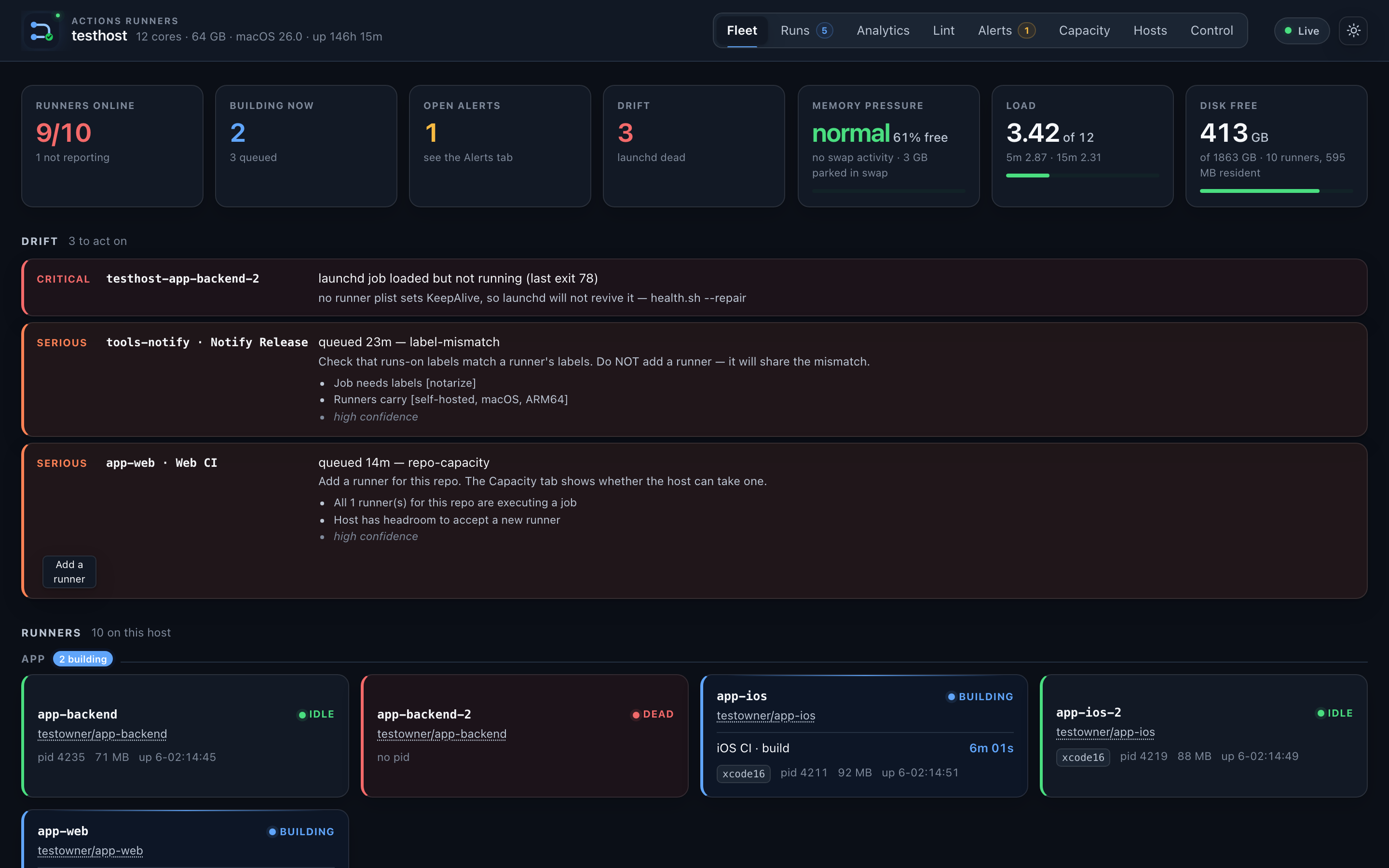
A fixture fleet, not a real one — every repository name in these screenshots is invented. Yours will show the one runner you just registered.
This is the part worth waiting for. The runner you registered sits at online.
When your push reaches it the badge flips to busy and the job appears on the
Runs tab with the runner's name against it, so you can see which machine
took the work. When the job finishes the badge returns to online and the run
lands in the recent list with its conclusion. That cycle — online → busy →
online — is the whole fleet in miniature, and from here everything else is a
matter of how many runners you have and what you want to know about them.
Managing the Mac over SSH
If you are managing the Mac over SSH and will access the dashboard from another machine, forward the port at connection time:
Then open http://localhost:7878 on your laptop. The dashboard stays on loopback on the host; the tunnel carries only your session.
gh looks broken over SSH, and is not
gh on macOS keeps its token in the login keychain, which a non-login SSH
session cannot read. So gh auth status reports an invalid token over SSH
on a host where gh is in fact logged in, and anything that shells out to
it fails the same way.
LaunchAgents do get keychain access, which is why the runners, the
dashboard daemon and health.sh all work when launchd starts them and fail
when you run them yourself over SSH. Run the daemon under launchd rather
than with ./fleetctl.sh run, and pass GH_TOKEN=… when you genuinely
need a foreground process over SSH. register.sh and
scripts/deregister.sh accept RUNNER_TOKEN=… for the same reason: mint
the token on a machine whose gh works and pass it in.
What to do next
- Concepts — what a runner, a fleet root and drift actually are
- The dashboard — what each tab answers
- Configure your workflows — labels, caching and concurrency
- Set up maintenance schedules —
./healthctl.sh installfor automatic health repair, plus weekly cleanup - Security deployment models — read this before putting the dashboard on a LAN
- Fleet Cockpit — the verdict in your menu bar, and
cockpit waitfor a PR's checks - Add a second Mac —
scripts/join-host.sh, then standby tiers if one host should take work first - Troubleshooting — symptom, evidence, cause and fix for the failures this fleet has actually had